Displaying exposure levels with a static-filled scanner
The scanner is one of the scariest features of The Sentinel. There you are, minding your own business, absorbing trees and building boulder stacks, and suddenly the air is filled with pulsating sonic beams and the scanner fills with static! You've been spotted and something nasty is getting ready to suck your life energy dry. And so starts the mad scramble to create a robot somewhere far away so you can transfer to safety, and all before your energy icons evaporate in a cloud of dithered pixels.
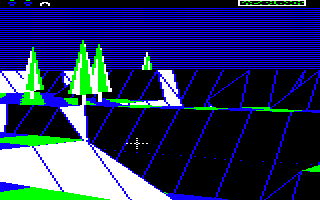
You can see the scanner in the top-right corner of the game screen:
And here's a close-up of what it looks like in full panic mode:

Check out the deep dive on sound effects for more on those pulsating sonic booms, or read the deep dives on following the gaze vector and enemy tactics to find out how the scanner gets triggered. But to find out how the scanner draws that hypnotic and deeply disturbing static effect, read on.
Drawing the scanner box
-----------------------
The scanner is part of the top row of the screen, which it shares with the energy icons. This row has its own dedicated screen buffer and set of update routines, which are described in the deep dive on the energy icons. As far as the scanner itself is concerned, the white box in the top-right corner gets cleared by the ClearIconsScanner routine, and it's redrawn along with the rest of the top row by the UpdateIconsScanner routine.
The scanner itself is ten character blocks wide. The blocks on each end contain the end-caps of the box, which leaves eight character blocks inside the scanner. Each block is four pixels wide, so the inner part of the scanner is 32 pixels wide and four pixels high. The scanner looks like this when it's empty, which is how the UpdateIconsScanner routine draws it:

The box is drawn by the DrawIcon routine, using these three individual icons (the middle icon being drawn eight times):
| Number | Description | Icon |
|---|---|---|
| 7 | Scanner box (left) |  |
| 8 | Scanner box (middle) |  |
| 9 | Scanner box (right) |  |
Redrawing the scanner box isn't the interesting part, though, because it's the static that makes the scanner really scary. We'll see how that works in a moment, but first let's discuss how the scanner is activated.
Activating the scanner
----------------------
The ProcessGameplay routine checks whether we need to activate the scanner on each iteration of the gameplay loop. It does this by calling the GetPlayerDrain routine, which works as follows.
By default the scanner status is black, which we denote by setting the playerTileIsHidden variable to zero. The GetPlayerDrain routine can change this in one of two ways: by setting it to 128 to denote a full scanner (when an enemy can see the player's tile, or 64 for a half scanner (when an enemy can see the player but can't see their tile).
To work out what to do, we iterate through all of the enemies on the landscape (i.e. all of the sentries and the Sentinel) and check their target objects. For enemies that have the player object as their target, we check that enemy's enemyVisibility variable, which gets set to the following during the tactics loop (see the deep dive on enemy tactics for details):
- Bit 7 set = the enemy can see the target's tile.
- Bit 6 set = the enemy can see the target object but it can't see the target's tile.
If bit 7 of enemyVisibility is set then we know this enemy can see the player's tile, so we set the playerTileIsHidden variable to the value of enemyVisibility (i.e. 128). If bit 7 is clear then we finish working through the enemies to see if there is an enemy with a clear view of the player's tile, and if there is then that enemy will set playerTileIsHidden to 128; but if there isn't an enemy with a clear view, then we set playerTileIsHidden to the value of enemyVisibility from the enemy with the partial view, so this sets playerTileIsHidden to 64.
This value is checked when we draw the scanner to determine whether to show a full or a half scanner, so let's take a look at the drawing process next.
Generating static
-----------------
When an enemy spots the player on the landscape, the scanner fills with static, like this:
If the enemy can see the player but can't see the player's tile, then the scanner still fills up, but only in the left half:

When the scanner is fully filled, the player will soon start to lose energy; when it is half full, the enemy starts looking for a suitable tree to turn into a meanie, to force the player into hyperspace (see the deep dive on enemy tactics for details).
The static effect is great; it crackles and jumps, just as you would expect from a scanner that can detect energy-depletion waves emanating from alien robot overlords. So how does it work?
The contents of the scanner is drawn by the UpdateScannerNow routine. This routine updates the inside portion of the scanner, but it doesn't touch the surrounding box. It takes a parameter, scannerState, that determines the new state of the scanner, which in turn determines what the routine should draw:
- If scannerState = 0 then fill the scanner with black, to indicate that the scanner is inactive and the player is not being scanned.
- If scannerState = 4 then fill the scanner with a TV static effect in colour 3, to indicate that the player is being scanned.
- If scannerState = 8 then fill the scanner with solid colour 3, to indicate that the game is paused.
Note that in the first landscape, colour 3 is green, but in other landscapes the scanner can be various colours, depending on the palette - see the deep dive on colours and palettes for more details.
The black (scannerState = 0) and pause states (scannerState = 8) are used by the ProcessPauseKeys routine when the game is paused and unpaused, but the static state (scannerState = 4) is a bit more interesting.
In terms of triggering the scanner's static effect, we can do this by setting the scannerUpdate variable to 4 (see below for more on this).
The scanner's static effect is managed by the UpdateScanner routine, which is called from the interrupt handler at IRQHandler during every interrupt while the game is in progress (so that's 50 times a second). The aforementioned scannerUpdate variable controls whether or not UpdateScanner updates the scanner on every call; if it is non-zero then every call to UpdateScanner will update the scanner, otherwise it only updates if the scanner state has changed. This check ensures that the static in the scanner is updated quickly when the player is being scanned, but not otherwise.
The UpdateScannerNow routine manages all three scanner states within the same code, which makes it a bit confusing, because even for the black and pause states, we still fetch random numbers and process them as if we were about to create some kind of animation effect... but in these cases they have no impact. This might seem a strange waste of code, but it does make it easier for us to draw only half a scanner's worth of static, as discussed below. Let's see how it works.
We start by working out the address of the inside portion of the scanner in screen memory; note that this isn't the address in the screen buffer, but in screen memory, as the contents of the scanner is poked directly onto the screen (only the scanner outline is managed via the buffer). We then step through the eight character blocks in the scanner, and for each character block we step through the four pixel rows inside the scanner box, working from top to bottom.
For each pixel row (which consists of four pixels), we call GetRandomNumber to fetch a random seed number. This routine uses a different pseudo-random algorithm to the landscape seed generator; see the deep dive on random number generation for details.
We then use that number to generate a bit pattern for each of the four rows. We do this by splitting the seed number into four two-bit numbers, one for each pixel row, and then we convert each of these two-bit numbers from the range 0 to 3 into the following ranges:
- If scannerState = 0 then convert the random number into the range 0 to 3.
- If scannerState = 4 then convert the random number into the range 4 to 7.
- If scannerState = 8 then convert the random number into the range 8 to 11.
If we call this random number Y, then we fetch the entry at index Y from the scannerPixelByte table, and that's the pixel byte that we poke into the scanner in screen memory. We then repeat this process for each of the four pixel rows before moving on to the next character block.
The scannerPixelByte table contains four pixel bytes of four black pixels in the first four entries, so the scanner in state 0 always shows solid black; and the table contains four pixel bytes of four colour 3 pixels in the last four entries, so the scanner in state 8 always shows solid colour 3. In this way states 0 and 8 produce solid colour using the same routine.
For the middle four pixel bytes, which we look up for the static effect, the first entry at index 4 has the leftmost pixel set to colour 3, the second entry has the second pixel set to colour 3, the third entry has the third pixel set to colour 3, and the fourth entry has the fourth pixel set to colour 3. So when the scanner is showing static, we end up with one random pixel set in colour 3 in every four-pixel pixel byte throughout the entire inside portion of the scanner, and updating the whole thing on every interrupt (at 50 times a second) gives us our static effect.
If we freeze-frame the effect, you can see this pixel distribution in effect, with exactly eight green pixels on each pixel row in the scanner:

The only other nuance is that after plotting the first four character blocks of static, the routine checks the value of the playerTileIsHidden variable. This gets set to 64 if the player is being scanned by an enemy who can see the player but can't see the player's tile (see the previous section above details). So the scanner routine checks whether playerTileIsHidden equals 64, and if it does it sets scannerState to zero so the remaining four character blocks are drawn in black, giving us a half-filled scanner with exactly four green pixels on each pixel row:

At this point the game starts looking for a suitable tree to turn into a meanie to flush the player out and into hyperspace; see the deep dive on enemy tactics for more details.