The sequence of events in the main game loop
Here is a high-level look at the main game loop. This loop runs while the game is in progress, and it only exits when either the player or the Sentinel has won.
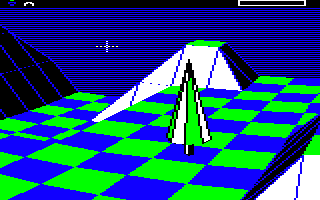
Starting the game
-----------------
The main game loop starts with the PlayGame routine, which is called after the landscape preview has been shown and the player has pressed a key (see program flow of the main title loop for details). This sets things up for the main game loop itself.
- Call SetColourPalette with A = &83 to set the palette to the correct colour scheme for the landscape's number of enemies, which was set in SpawnEnemies during the landscape generation phase (see the deep dive on adding enemies and trees to the landscape for details).
- Call ReadKeyboard to wait for a key press.
- Fall into part 1 of MainGameLoop to run the main game loop (see below).
Processing the game state and redrawing the landscape
-----------------------------------------------------
We now enter the main game loop. We either get here by starting a brand new game, or by jumping here from part 2 if a game is in progress and the Sentinel has won, or the player has moved to a new tile, performed a U-turn or pressed the quit key.
This part of the main game loop processes these various scenarios (if a game is already in-progress) and redraws the whole landscape if required (for when the player has moved or when this is a new game).
- Call FlushSoundBuffers to flush all four sound channel buffers.
- If the player has pressed the quit key at any time during the game loop, jump to MainTitleLoop to restart from the main title screen (see program flow of the main title loop).
- If the Sentinel has won the game, jump to game6 to restart the landscape as follows:
- Call ResetVariables to reset all the game's main variables.
- Call InitialiseSeeds to initialise the seed number generator so it generates the sequence of seed numbers for the entered landscape number.
- Jump to main4 in the main title loop to restart the landscape without having to enter the landscape's secret code again (see program flow of the main title loop).
- If we get here then we have either started a brand new landscape or we jumped to MainGameLoop from part 3 when the player moved to a new tile or performed a U-turn, so now we consider generating a brand new landscape view:
- Call SetColourPalette with A = 4 to set the palette to all-blue (to hide the screen-drawing process).
- Reset a handful of variable and call SetScannerAndPause to stop the scanner from updating and delay for 40 empty loops of 256 iterations each (i.e. 10,240 loops).
- If the game has ended because the player has hyperspaced from the Sentinel's tower, thus winning the game, then jump to FinishLandscape to process winning the landscape (see program flow of the main title loop).
- If the game has ended because the player tried to hyperspace without enough energy to create a destination robot, then call ClearScreen to clear the screen and skip the next bullet point (so we don't draw the landscape if the player has just lost the game).
- We now draw the landscape as follows:
- If this is not a U-turn, then call GetTileVisibility to go through each tile in the landscape and calculate whether the player can see that tile, storing the result in the visibility table. This helps speed up the process of drawing the landscape. We don't need to recalculate this when doing a U-turn as the player isn't moving, so the visibility values in the table won't change.
- Call ClearScreen to clear the screen.
- Call DrawLandscapeView to draw the landscape view (see the deep dive on drawing the landscape view).
- Call UpdateIconsScanner to update the icons in the top-left corner of the screen to show the player's current energy level and redraw the scanner box.
- Set screenOrBuffer and call ConfigureBuffer to configure the drawing routines to draw into the screen buffer (as opposed to drawing directly onto the screen) and set up the screen buffer for use as a column buffer
- Call ProcessSound to process any sound effects or music that is playing in the background, repeatedly calling the routine until they have all finished.
- Call SetColourPalette with A = &83 to set the palette to the correct colour scheme for the landscape's number of enemies, which was set in SpawnEnemies during the landscape generation phase (see the deep dive on adding enemies and trees to the landscape for details).
- If the game has not ended because of a hyperspace, jump to part 2 to move on to running the gameplay loop.
- Otherwise the game has ended because of a hyperspace, and it must be because the player ran out of energy, as otherwise we would have jumped to FinishLandscape above, so process the game ending as follows:
- Set bit 7 of sentinelHasWon to indicate that the player has run out of energy and the Sentinel has won.
- Call ShowGameOverScreen with A = 5 and soundEffect = 6 to display the game over screen, decaying the screen to black with a mass of 5 * 2400 = 12,000 randomly placed black dots, while the game over sound effect plays.
- Call ResetVariables to reset all the game's main variables.
- Call InitialiseSeeds to initialise the seed number generator so it generates the sequence of seed numbers for the entered landscape number.
- Jump to main4 in the main title loop to restart the landscape without having to enter the landscape's secret code again (see program flow of the main title loop).
Gameplay loop and panning
-------------------------
This part of the main game loop calls the gameplay loop, which runs the core of the game (see the deep dive on program flow of the gameplay loop for details). It also deals with the scrolling screen updates for landscape panning (as opposed to the full-screen redraw in part 1).
The gameplay loop returns if the player holds down a pan key long enough for the new part of the landscape to have been drawn into the screen buffer; it also returns if the Sentinel has won, or the player has moved to a new tile, performed a U-turn or pressed the quit key. In all cases the main game loop processes the return state from the gameplay loop, with this part implementing the panning process, and part 1 dealing with the other states.
- Call ProcessGameplay to run the gameplay loop (see program flow of the gameplay loop)
- If the gameplay loop exited because the player is holding down a pan key, then we implement the panning process as follows:
- Set numberOfScrolls = 0 to reset the scroll counter so the interrupt handler will not scroll the screen while we set up the new pan.
- If the sights are not visible on-screen, set bit 7 of keepCheckingPanKey so DrawLandscapeView will abort the drawing process if the player releases the pan key before the drawing process has finished.
- Call PanLandscapeView to draw the new part of the landscape view required for the screen pan, and if it completes (i.e. if the player hasn't released the pan key in the meantime) then initialise the interrupt-based scrolling process so the landscape view will scroll and perform the pan in the background.
- Clear bit 7 of keepCheckingPanKey so DrawLandscapeView will keep drawing the landscape irrespective of the pan keys being held down (so this takes the routine back to its default behaviour).
- Call UpdateIconsScanner to update the icons in the top-left corner of the screen to show the player's current energy level and redraw the scanner box.
- Set scrollCounter to the number of scrolls required for the pan, so the interrupt handler will scroll the screen by this many steps in the background.
- Wait until the interrupt handler has finished scrolling the landscape view, thus implementing the pan on-screen.
- Loop back to the start of this section (so we go back to the gameplay loop again).
- Otherwise the ProcessGameplay routine returned because one of the following is true:
- The Sentinel has won
- The player has moved to a new tile
- The player has performed a U-turn
- The player has pressed the quit game key