The main title screen, landscape preview and game over screen
Outside of the distinctive 3D landscape view of the game itself, there are four other screens in The Sentinel, which I've loosely termed the "title screens". They are the following:
In this article we'll look at each of these in turn and explain how they work; if you're in a hurry, you can click on the links above to jump to a particular section.
It's worth noting that almost everything in The Sentinel is drawn by the same 3D graphics engine that draws the 3D landscape in-game, and that includes the title screens. The only parts of the game that aren't drawn by the game engine are:
- The standard system text on the title screens, such as "PRESS ANY KEY" in the first screenshot below (see the deep dive on text tokens for more about the text system).
- The stars on some of the title screen backgrounds (see the section below on the game over screen for details).
- The energy icons and scanner at the top of the game screen (see the deep dives on the energy icons and the scanner for more information).
Absolutely everything else in The Sentinel is drawn using the 3D landscape engine; even the dithering screen-decay effect on the game over screen reuses the object-dithering routine from the game. It's a very clever way of fitting fancy title screens into a small memory footprint.
Let's look at how each of these title screens is drawn.
The main title screen
---------------------
The main title screen is shown when the game starts or restarts. It looks like this:
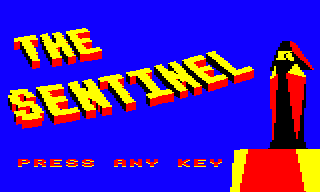
If you press a key, then you can enter a landscape number, like this:
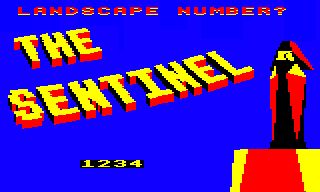
and for landscapes apart from landscape 0000, you can then enter a secret code, like this:
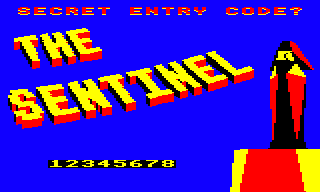
Once the code has been entered, the next screen shown is the landscape preview (see the next section below).
The main title screen is drawn in the MainTitleLoop routine by calling the DrawTitleScreen routine with bit 7 of A clear (to denote that we should draw the main title screen rather than the secret code screen). Here is the program flow for this routine when drawing the main title screen:
- Initialise the 3D text system by configuring object #63, setting bit 7 of drawingTitleScreen and calling ProcessTileData to initialise the tile data.
- Work through the title text at titleText and spawn the text on the relevant tiles in the landscape.
- Call DrawTitleView to draw the title screen. This does the following:
- Set up the camera position for the title screen in object #16 (see below).
- Call ClearScreen to fill the screen with solid colour 0 (blue).
- Call DrawTitleObjects to draw the title screen objects (in the case of the main title screen, that's the Sentinel and the Sentinel's tower on the right side of the screen). This calls DrawTitleObject for each object, which in turn calls SpawnTitleObject to spawn the object and DrawObject to draw the object.
- Call DrawLandscapeView to draw the landscape view, which in this case draws the 3D text. This calls the DrawTileAndObjects routine for each tile in the landscape, so that 3D text is drawn in the shape of "THE SENTINEL".
- Once everything is drawn, clear bit 7 of drawingTitleScreen so that tile and object drawing goes back to normal.
The 3D text-drawing process is described in the deep dive on drawing 3D text using blocks; we'll concentrate on the object-drawing process here.
For drawing an object on the title screen, the SpawnTitleObject routine sets up the object that we want to draw in object #1, and the viewing object (i.e. the camera) in object #2. The configuration values for these objects are pulled from a number of lookup tables and stored in the object variables, as noted in the following tables.
Here are the values in object #1 for the Sentinel's tower:
| Lookup table | Value | Variable | Description |
|---|---|---|---|
| yTitleObject | 0 | yObjectHi+1 | The y-coordinate of the tower relative to the viewer |
| zTitleObject | 7 | zObject+1 | The z-coordinate of the tower relative to the viewer |
| titleObjectYaw | -50 | objectYawAngle+1 | The yaw angle of the tower |
And here are the values in object #1 for the Sentinel on top of the tower:
| Lookup table | Value | Variable | Description |
|---|---|---|---|
| yTitleObject | 1 | yObjectHi+1 | The y-coordinate of the Sentinel relative to the viewer |
| zTitleObject | 7 | zObject+1 | The z-coordinate of the Sentinel relative to the viewer |
| titleObjectYaw | -114 | objectYawAngle+1 | The yaw angle of the Sentinel |
Finally, the viewing object in object #2 is set up in the same way for drawing both objects, as follows:
| Lookup table | Value | Variable | Description |
|---|---|---|---|
| titleViewerPitch | -5 | objectPitchAngle+2 | The pitch angle of the viewer |
| titleViewerYaw | -8 | objectYawAngle+2 | The yaw angle of the viewer |
This means that:
- The Sentinel is set to a yaw angle of -114, so it looks out of the screen, just towards the left of the viewer (-128 would be looking straight ahead, directly out of the screen).
- The tower is set to a yaw angle of -50, so it is rotated left by 70 degrees compared to looking into the screen, so it looks towards the rear left (this makes the tower colours look nicely orientated on-screen).
- The viewing object is set to a pitch angle of -5 and a yaw of -8, so the camera points down and left, thus moving both the Sentinel and tower to the right of the screen.
- The Sentinel and tower are always at the same x-coordinate as the viewing object.
- The tower is at the same y-coordinate as the viewer (so they are at the same altitude).
- The Sentinel is higher than the viewer by one y-coordinate, which is the height of the tower.
- The Sentinel and tower are both at a z-coordinate distance of seven tile sizes from the viewer.
The Sentinel is drawn first and then the tower, as the Sentinel is higher than the viewer, and then the 3D text is drawn. On returning to the MainTitleLoop routine, the drop-shadow system text is printed ("PRESS ANY KEY") and the landscape number and secret code can be entered.
Once the code has been processed, the landscape preview appears, so let's look at that next.
The landscape preview
---------------------
The landscape preview is shown once a landscape number has been entered from the main title screen (and a secret code if this isn't landscape 0000). It looks like this:
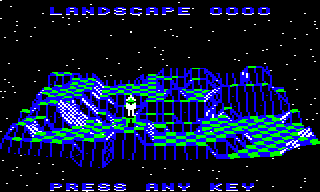
The landscape preview is drawn by calling the PreviewLandscape routine, and the drawing process is described in detail in the deep dive on drawing the landscape preview.
The secret code screen
----------------------
The secret code screen is shown when a landscape is successfully completed (so that's when the player has absorbed the Sentinel and performed a hyperspace while standing on top of the Sentinel's tower). It looks like this:
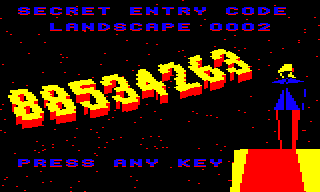
This screen is drawn in a very similar manner to the main title screen, except the object on the tower is a robot (which denotes the victorious player), the background is black with coloured stars (as opposed to solid blue), the 3D text is the landscape's secret code, and the system text at the top of the screen is different.
The stars are placed randomly on the background by the DrawStars routine, which calls DrawRandomDots to actually draw the stars. This uses the same algorithm as the decaying process used in the game over screen, which is described in the deep dive on dithering to the screen.
The object configurations for the Sentinel and tower in the main title screen are reused for the robot and tower on the secret code screen - see above for the details. The screen background is set and the system text is printed by the FinishLandscape routine, which calls GetNextLandscape to generate the number of the next landscape and the new secret code along with it. This then calls the DrawTitleScreen routine to do the drawing, passing a set bit 7 in A to make the routine draw the secret code instead of the main title text.
See the deep dive on program flow of the main title loop for more details.
The game over screen
--------------------
The game over screen is shown when the player loses the game, either by having all of their energy drained by an enemy, or by trying to hyperspace when they don't have enough energy to create a robot to transfer into (i.e. three energy points). It looks like this:
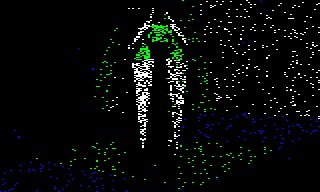
The game over screen is drawn by calling the ShowGameOverScreen routine. The program flow and dithering system used on the game over screen are described in the deep dives on program flow of the main title loop and dithering to the screen, but we'll take a look at the object-drawing process here.
The screen dithers the victorious enemy object into the centre of the screen during the middle part of the animation. The type of object that is drawn is determined by the value of the titleObjectToDraw variable. By the time the game ends, titleObjectToDraw has been set to the type of object that caused the player's demise, be it the Sentinel, a sentry, a meanie or the player themselves (the player is declared the culprit in the case of a failed hyperspace). This ensures that we can display the correct object on the game over screen.
For drawing the victor on the title screen, the SpawnTitleObject routine sets up the object that we want to draw in object #1, and then sets up the viewing object in object #2. Just as on the other title screens, the configuration values for these objects are pulled from a number of lookup tables and stored in the object variables, as noted in the following table.
Here are the values for the victorious object in object #1 and the viewer in object #2:
| Lookup table | Value | Variable | Description |
|---|---|---|---|
| yTitleObject | 0 | yObjectHi+1 | The y-coordinate of the victor relative to the viewer |
| zTitleObject | 5 | zObject+1 | The z-coordinate of the victor relative to the viewer |
| titleObjectYaw | 128 | objectYawAngle+1 | The yaw angle of the victor |
| titleViewerPitch | -12 | objectPitchAngle+2 | The pitch angle of the viewer |
| titleViewerYaw | 0 | objectYawAngle+2 | The yaw angle of the viewer |
The values for the tower can be found in the section on the main title screen above. This means that:
- The victorious enemy object is set to a yaw of 128, so it stares directly out of the screen towards the viewer.
- The viewing object is set to a pitch angle of -12 and a yaw angle of 0, so the camera points slightly down and straight ahead, thus moving the object up the middle of the screen.
- The victorious enemy object is always at the same x-coordinate as the viewing object.
- The victorious enemy object is at a z-coordinate distance of five tile sizes from the viewer.
And that's how the game over screen is drawn: all you need to do is add a dithering effect, crashing sound effects and eerie music, and it's definitely The End.