The convoluted loop that displays the title and landscape preview screens
Here is a high-level look at the main title loop in The Sentinel. This loop displays the main title screen, asks for a landscape number and secret code (if it isn't landscape 0000), and shows the landscape preview. It is also responsible for drawing the game over screen if the player loses, or the secret code for the next landscape if the player wins.
Note that the following program flow is a simplified version of the code, as the game contains a number of obfuscations that are designed to put crackers off the trail. These are documented in the deep dive on anti-cracker checks, but have been left out of the following to make things easier to follow.
The title screen
----------------
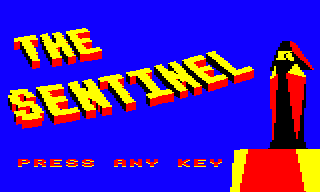
The main title loop starts by displaying the title screen (shown below) and processes the player typing in the landscape number and, if applicable, the secret code.
- Call SetColourPalette with A = 4 to set the palette to all-blue (to hide the screen-drawing process).
- Call ResetVariables to reset all the game's main variables.
- Call DrawTitleScreen with A = 0 to draw the main title screen.
- Call PrintTextToken with A = 0 to print "PRESS ANY KEY" (text token 0).
- Call SetColourPalette with A = &87 to set the palette to blue, black, red and yellow.
- Call ReadKeyboard to wait for a key press.
- Call ResetVariables to reset all the game's main variables.
- Call PrintTextToken with A = 1 to print "LANDSCAPE NUMBER?" (text token 1).
- Call ReadNumber to read the landscape number from the keyboard.
- Call StringToNumber to convert the landscape number from a string to a number.
- Call InitialiseSeeds to initialise the seed number generator so it generates the sequence of seed numbers for the entered landscape number.
- If this is landscape 0000 then copy the hard-coded secret code for landscape 0000 into the input buffer, otherwise call ReadNumber and StringToNumber to get the player to enter the secret code.
- Call SetColourPalette with A = 4 to set the palette to all-blue (to hide the screen-drawing process).
- Call GenerateLandscape to generate the landscape, show the landscape preview and play the game (see below).
- If the call to GenerateLandscape returns normally then the secret code that the player entered is not correct, so fall through into SecretCodeError to display an error (see below).
- Call ResetVariables to reset all the game's main variables.
- Call SetColourPalette with A = &87 to set the palette to blue, black, red and yellow.
- Call DrawTitleScreen with A = 0 to draw the main title screen.
- Call PrintTextToken with A = 3 to print "WRONG SECRET CODE" (text token 3).
- Call ReadKeyboard to wait for a key press.
- Jump back to MainTitleLoop (see above).
Generating and previewing the landscape
---------------------------------------
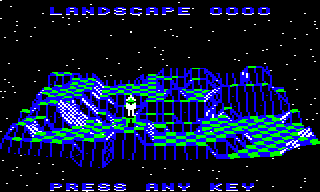
Once the landscape number and code have been entered, then the landscape is generated, the preview screen is shown and the game itself can start.
- Generate the landscape (see the deep dive on generating the landscape for details).
- If bit 7 of doNotPlayLandscape is set then return from the subroutine without previewing the landscape. This bit is cleared by the ResetVariables routine, so by default we do not return early from this routine, but if we just want to calculate the secret code for a landscape without playing it, as in the GetNextLandscape routine below, then we can set bit 7 to achieve this.
- Otherwise jump to PreviewLandscape (see below).
- Call SpawnEnemies to calculate the number of enemies for this landscape, add them to the landscape and set the palette accordingly (see the deep dive on adding enemies and trees to the landscape for details).
- Call DrawTitleView to draw the landscape preview (see the deep dive on drawing the landscape preview for details).
- Call SpawnPlayer and SpawnTrees to add the player and trees to the landscape (see the deep dive on adding enemies and trees to the landscape for details).
- If the call to SpawnPlayer returns normally then the secret code that the player entered is not correct, so jump to SecretCodeError to display an error (see above).
- Otherwise SpawnTrees will jump to PlayGame to play the game (see program flow of the main game loop for details).
At this point the main game loop takes over, which you can read all about in the program flow of the main game loop. The main game loop can terminate in two different ways, so let's look at both of those now.
Winning the game
----------------
The main game loop can terminate with either the player or the Sentinel winning. If the player wins, then the secret code for the next landscape is shown by calling FinishLandscape:
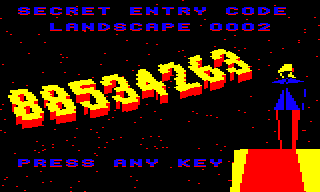
Here is the program flow for the winning process.
- Call SetColourPalette with A = 4 to set the palette to all-blue (to hide the screen-drawing process).
- In order to display the secret code for the next landscape we need to generate that landscape, so call ResetTilesObjects to reset the landscape seed generator, the tile visibility table and the object flags, to get ready for the generation process in the GetNextLandscape routine.
- Call GetNextLandscape to add the player's energy to the landscape number to get the number of the next landscape and display that landscape's secret code (see below).
- Call SetColourPalette with A = &87 to set the palette to blue, black, red and yellow.
- Call PlayMusic to play the music for when the player finishes a landscape, and call ProcessSound in a loop until the music has finished.
- Call PrintTextToken with A = 0 to print "PRESS ANY KEY" (text token 0).
- Call ReadKeyboard to wait for a key press.
- Jump back to MainTitleLoop to restart the game from the main title screen (see program flow of the main title loop).
- Call GetPlayerEnergyBCD to fetch the player's energy in binary coded decimal.
- Add the player's energy to the current landscape number to get the next landscape number.
- Call InitialiseSeeds to initialise the seed number generator so it generates the sequence of seed numbers for the next landscape.
- By this point bit 7 of doNotPlayLandscape is set (it is actually set in the PerformHyperspace routine that is called when the player hyperspaces to win the game). As noted above, this means that the following calls to GenerateLandscape and SpawnPlayer return normally and without previewing the landscape or starting the game.
- Call GenerateLandscape to generate the landscape and return without previewing the landscape or playing the game.
- Call SpawnEnemies to calculate the number of enemies for this landscape, add them to the landscape and set the palette accordingly (see the deep dive on adding enemies and trees to the landscape for details).
- Call SpawnPlayer and SpawnTrees to add the player and trees to the landscape (see the deep dive on adding enemies and trees to the landscape for details).
- Call DrawTitleScreen with A = &80 to draw the screen showing the landscape's secret code.
- Call PrintTextToken with A = 5 to print "SECRET ENTRY CODE" and "LANDSCAPE" (text token 5).
- Call PrintLandscapeNum to print the four-digit landscape (0000 to 9999).
- Return from the subroutine.
Losing the game
---------------
The main game loop can terminate with either the player or the Sentinel winning. If the Sentinel wins then the game over screen is shown by calling ShowGameOverScreen:
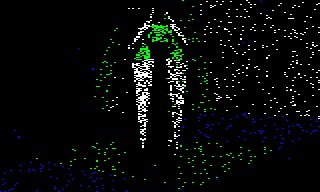
Here is the program flow for the game over process.
- Call ClearIconsScanner to clear the energy icon and scanner row at the top of the screen.
- Call DecayScreenToBlack to decay the screen to black with a mass of randomly placed black dots, so this takes the screen from the end of the game and slowly obliterates it with black dots. The decaying consists of 12,000 dots for when the player runs out of energy when trying to hyperspace, or 72,000 dots for when the player is absorbed by the Sentinel.
- Call SpawnTitleObject to spawn an object of type titleObjectToDraw as object #1. By the time the game ends, titleObjectToDraw has been set to the type of object that caused the player's demise, be it the Sentinel, a sentry, a meanie or the player themselves, so this displays the correct culprit on the game over screen.
- Call PlayMusic with A = 50 to play the game over music.
- Call DrawUpdatedObject to draw the culprit object on-screen with a dithered effect, and without the surrounding landscape, so the culprit appears to hover into view as the player's view dissolves.
- Call DecayScreenToBlack to smother the screen in 72,000 randomly placed black dots to decay the screen to black.
- Return from the subroutine.