Creating and absorbing objects on-screen with a dithered effect
The landscape view in The Sentinel is made up entirely of polygons, and those polygons are typically drawn into the screen buffer; sometimes we draw them directly into screen memory, but that's only when we need to update the entire screen, such as during a U-turn. Most of the time, though, we draw into the screen buffer, and once the drawing process is completed, we copy the contents of the screen buffer into screen memory. In this way we can hide the drawing process from the player, so they see smooth graphics instead of an algorithm.
For example, when the player presses a pan key and the landscape view scrolls, the interrupt handler copies the new part of the landscape view into screen memory as part of the scrolling process, giving the game smooth scrolling of filled 3D graphics, which is pretty impressive for an 8-bit computer; see the deep dives on screen buffers, drawing filled polygons and panning and hardware scrolling for details of how this all works.
But there are two places where the screen buffer isn't copied straight into screen memory, and instead the graphics are dithered onto the screen, dot by dot. The first example is when the player creates or absorbs objects, such as this tree being created:
The second example is on the game over screen. In the following clip, the Sentinel has won by draining all the energy from the player, so the game screen dissolves and fades to black while the ghostly apparition of the victorious Sentinel dithers in and out of view in a suitably creepy fashion:
In this article we'll explore the dithering process, starting with the dithering of objects before moving on to the more complex two-phase dithering of the game over screen.
Dithering 3D objects
--------------------
Objects can be created or removed fairly simply, by calling the routines described in the deep dive on object management; for example, calling the SpawnObjectOnTile routine will add a new object to a specific tile, while a call to DeleteObject will remove an object so that its object number can be reused. You can also change object properties by updating an object's data; for example, you can change an object's type by updating the relevant entry in the objectTypes table, or you can rotate an object left or right via the objectYawAngle table.
If we update an object's data and it isn't currently being shown on-screen, then we don't need to do anything else. But if the object is on-screen in the landscape view, then we may also need to update that view, and that's where the DrawUpdatedObject routine comes into play.
DrawUpdatedObject is used to draw an object into the screen buffer so that it's suitable for updating onto the screen. Sometimes we want to dither this process, but sometimes we don't. For example, if an enemy rotates while the player is looking at it, then we want that rotation to happen instantly, and without any dithering. In this case the object is drawn into the screen buffer in its new position, and once that's done the entire contents of the screen buffer is copied straight into screen memory, thus updating the object on-screen in an instant.
To implement a dithering effect, we still draw the object into the screen buffer, but the copying process is done one pixel at a time, and in a random fashion. As an example, let's imagine the player wants to create a tree in an empty part of the landscape, like this:
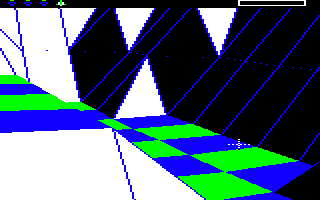
As you can see, they have placed the crosshair sights over the destination tile, so now they can press "T" to create a tree there. The tree gets drawn into the screen buffer and then the contents of the buffer is copied onto the screen, dot by dot, like this:
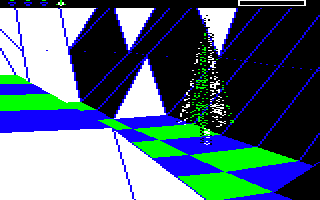
When we've done enough dithering (which in this case is after a total of 6375 dots have been copied), the screen buffer is copied in its entirety onto the screen to fill in any uncopied pixels. This makes the tree pop into existence, thus completing the creation process:
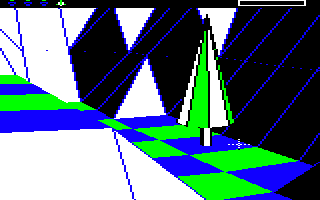
If we look at the process again, we can see that the new tree fits nicely into the landscape here:
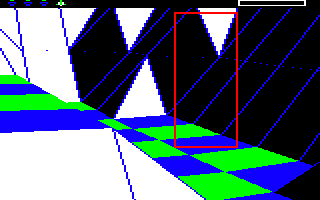
To make this work, the screen buffer contains the exact same part of the landscape, just with a tree drawn on the tile, like this:

So copying the screen buffer to the screen dot by dot will make the tree materialise slowly in the landscape:
And at the end we make sure to copy the whole buffer, like this:
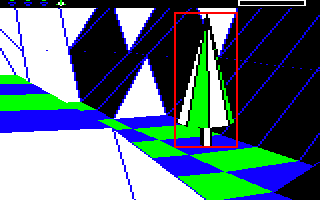
If we then wanted to absorb the tree and remove it from the landscape with a dithered effect, then we would draw the same landscape view into the buffer but only after deleting the tree object. We would then dither this empty landscape onto the screen to make the tree disappear in a cloud of dots.
This process is managed by the DrawUpdatedObject routine, so let's take a look at that next.
The DrawUpdatedObject routine
-----------------------------
The DrawUpdatedObject routine takes a few parameters to support this process in number of different cases. The parameters configure the following:
- The number of the viewing object, so we can change the camera angle (for the landscape this is always the player, but for the game over screen it's the camera location for the victorious object's dithered apparition).
- Whether or not to draw the landscape behind the object; when creating or absorbing objects on the landscape we obviously want this option enabled, but for the game over screen we don't.
- Whether or not we remove the sights from the screen before dithering and put them back afterwards, which you can see being done in our tree example:
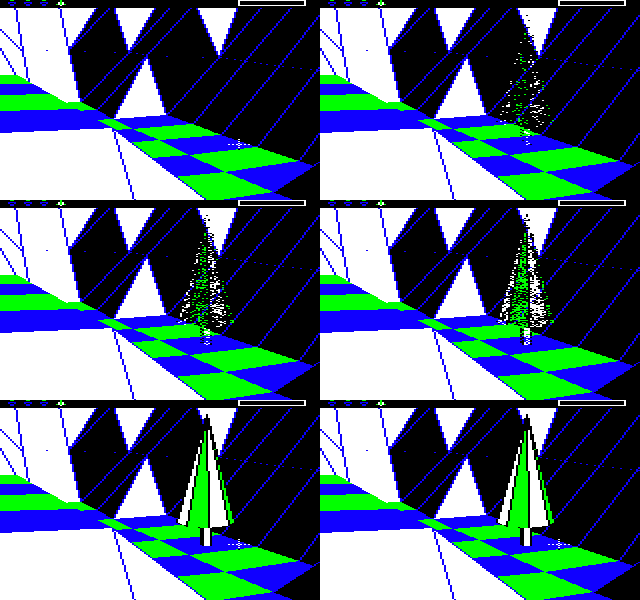 Note that this image only shows a few stages from the process (the dithering process is a lot smoother in-game, as the clip at the start of the article shows), but it's enough to see the dithering effect in action.
- The screen background to use when drawing the object, so that's either the blue/black sky (for dithering objects into the landscape), or a solid black background with 240 randomly positioned stars (for the game over screen).
Once configured, the DrawUpdatedObject routine draws the required object into the screen buffer, using the smallest portion of buffer into which the object will fit; the size of the required screen buffer is calculated by calling the GetObjVisibility routine, which calculates whether any part of the object is visible on-screen, and if so, which character columns it spans on the screen. Given this information, the dimensions of the screen buffer are configured in the ConfigureObjBuffer routine, ready for the object to be drawn.
It is possible that the object might be too wide to fit into a single screen buffer; ConfigureObjBuffer always configures the buffer as a column buffer to make sure that the entire visible part of the object fits into the buffer height-wise, but if the object is wider than the column buffer then we have a problem. The maximum width of the column buffer is half a screen width, or 80 pixels, so if our object is wider than half a screen, then the object is drawn and dithered in two stages, with the first stage drawing the first 80 pixels of the object width, and the second stage doing the rest.
For example, here's a close-by tree being absorbed in two stages:
And here's a boulder being created on the same tile, again in two stages:
Once the screen buffer is configured, the object is drawn into the buffer by calling either DrawLandscapeView (if we want to draw the landscape as well as the object) or DrawObject (if we only want to draw the object).
To ensure that the object is drawn with minimal wasted space around the object itself, the code calculates a yaw adjustment in yawAdjustment(Hi Lo) that effectively moves the object to the left edge of the screen buffer by adding the correct amount of yaw to the camera to move the camera view to the right. Without any yaw adjustment, the object would be drawn into the buffer at its usual position on-screen, which wouldn't be an efficient use of the limited buffer space. To see this, consider the tree that we created above, in this position:
If we simply drew the tree without a yaw adjustment, there would be a large amount of landscape to the left of the tree in the screen buffer. But with the yaw adjustment applied, the object effectively moves to the left edge of the screen buffer, so the screen buffer looks like this:
The drawing routines all incorporate this yaw adjustment, but it's normally zero and has no effect. Is it only non-zero when we're drawing objects to update onto the screen in this way.
Once the object has been drawn into the screen buffer, we then call the DitherScreenBuffer routine to dither the contents of the screen buffer onto the screen. We tell the routine how many inner loops of 255 pixels we want to run, and this is set to 25 for dithering objects into the landscape, so we dither a total of 25 * 255 = 6375 dots from the screen buffer to the screen before copying over the whole screen buffer to complete the picture.
We'll take a look at the dithering algorithm in a minute, but first let's talk about dithering on the game over screen, as it's a little more involved.
Dithering on the game over screen
---------------------------------
The dithering process is a key part of the game over screen, when the victorious object hovers into view in a mess of dots. There's a video of the process at the start of this article, but here's a speeded-up animation of the main steps involved, so you can see what's happening more easily:
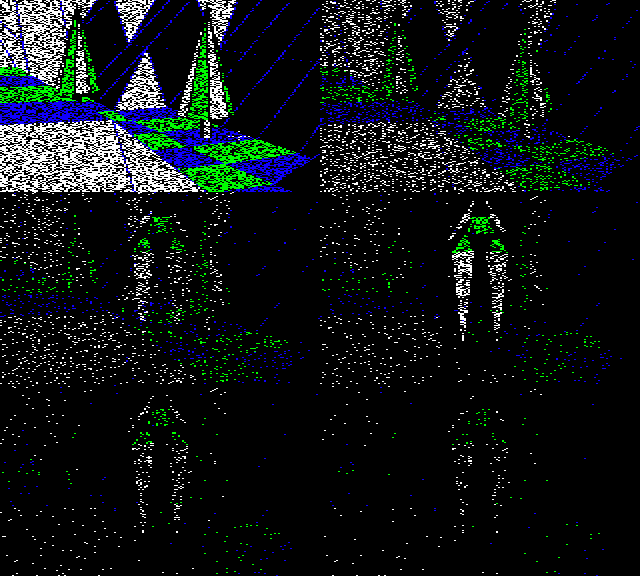
This process is managed by the ShowGameOverScreen routine, which is described in the deep dive on program flow of the main title loop. This routine can be called in two different ways: when the player tries to hyperspace but doesn't have enough energy (see the program flow of the main game loop), or when the player has all their energy absorbed by an enemy (see the program flow of the gameplay loop).
In terms of dithering, there are a few stages that you can see in the above animation.
- First, the landscape view from the end of the game is decayed by calling the DecayScreenToBlack routine. This decays the screen to black with a mass of randomly placed black dots, so this takes the screen from the end of the game and slowly obliterates it with black dots. The decaying is done by the DrawBlackDots (which calls the DrawRandomDots routine) and consists of 12,000 dots for when the player runs out of energy when trying to hyperspace, or 72,000 dots for when the player is absorbed by the Sentinel (so being absorbed is a slower process than a hyperspace malfunction).
- We then set bit 7 of drawLandscape. This makes the last part of the interrupt handler at IRQHandler call the DrawBlackDots routine on each interrupt, so that it draws 80 random black dots on the screen in the background, fifty times a second, while the rest of the game-over process continues in the foreground. This means that when we start dithering the victorious object onto the screen in the next step, we do it at the same time as the interrupt handler is randomly fading the screen to black. This creates the hypnotic effect of the winning entity fading in and out of the screen as the game ends.
- Next, the victorious object (which is the Sentinel in our example) is dithered onto the screen by calling DrawUpdatedObject. The victor is drawn without the surrounding landscape and with a black starry background, so the culprit appears to hover into view at the same time as the player's view continues dissolve. We tell the routine how many inner loops of 255 pixels we want to run, and this is set to 40 for the game over screen, so we dither a total of 40 * 255 = 10,200 dots from the screen buffer to the screen. Also, because this is the game over screen, we do not copy the whole buffer onto the screen at the end of the process, so the Sentinel doesn't pop onto the screen when the dithering is done.
- We finish off by calling DecayScreenToBlack again, this time drawing 72,000 dots, irrespective of how the player died.
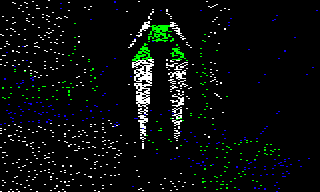
The clever part about this process is how the two concurrent decaying processes interact, with the interrupt process blanking pixels at the same time as the object is being dithered onto the screen, and because we are dithering from the screen buffer and the contents of the buffer always contains the full object, the victor appears to fade both in and out of view. It's a neat way of representing the player being absorbed by the pulsatingly hypnotic gaze of the victor....
Now that we've seen where the dithering process is used, let's see how it's implemented.
The dithering routine
---------------------
As mentioned above, dithering the screen is done in two places:
- The DrawBlackDots routine calls DrawRandomDots, which draws 80 randomly placed black dots to the screen, so the screen decays to black in a dithered manner.
- The DitherScreenBuffer routine can optionally dither the contents of the screen buffer onto the screen, for a configurable number of dots.
Both routines call the GetRandomNumber routine to generate random numbers that can be used to determine the placement of the dithered pixels. This routine uses a different pseudo-random algorithm to the landscape seed generator; see the deep dive on random number generation for details.
The DrawBlackDots works by taking two pseudo-random numbers. We clear bits 5 to 7 in one of them (while keeping the original bits 6 and 7 for later) and use this as the high byte in a two-byte value, with the other number as the low byte, so we get a random number in the range 0 to &1FFF. If the result is greater than &1DFF then two more numbers are chosen, until we have a random number in the range 0 to &1DFF (which is the size in memory of the 24-row landscape view, as 24 * 320 = &1E00). We can then add this to the address of the start of screen memory in viewScreenAddr(1 0) to get the address of a random pixel byte within screen memory. Finally, we take bits 6 and 7 from the original random number that we used for the high byte above, and use these to choose which pixel within the pixel byte we should blacken.
The DitherScreenBuffer routine is a bit more complicated, because we need to cap the randomness to match the size of the object that we've drawn into the screen buffer. The first step is to take the width of the object in character columns and create a bit mask that will let us convert random numbers into the correct column range, and then we take two random numbers and use them to calculate an offset into screen memory, incorporating the offset of the previous pixel byte that we dithered to make it unlikely that we will dither a pixel close to the previous one.
This is then fed into a convoluted algorithm that converts this random number into an offset within screen memory of the random pixel byte that we can use for dithering one pixel of the screen buffer to the screen. Then we convert this offset into both a screen memory address and the corresponding screen buffer address, so we can copy the pixel from the screen buffer to the screen. The column buffer wraps around in memory, as described in the deep dive on screen buffers, so we need to cater for this as well.
As with DrawBlackDots, the above process leaves bits 6 and 7 unused from one of the random numbers, so we use these to choose which pixel within the pixel byte we should copy into screen memory, and then we copy that pixel to the screen. This is repeated 255 times for each inner loop, which is then repeated via an outer loop of 25 or 40 as required.
And that's how the Sentinel gets dithered onto the screen when, for the umpteenth time, the player succumbs to the relentless scanning of the enemy.