Representing energy levels with robot, tree and boulder icons
The top row of the game screen contains two important status indicators: on the left is the player's energy level, and on the right is the scanner. We're going to take a look at the energy level indicator here, while its companion is covered in its own deep dive on the scanner.
The energy icon and scanner row can be seen along the top of the screen, just above the player's scrolling landscape view:
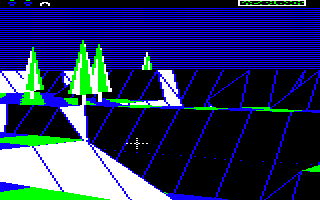
The player's current energy level is indicated by a sequence of icons that together add up to the player's total amount of energy. Each icon represents the amount of energy encapsulated in that type of object, which is the same as the amount of energy required to create that object, or the amount of energy you get if you absorb that object; so the robot icon represents three energy points, for example, as that's how much energy you need to create a robot.
Here are the objects that can appear in the energy row:
| Object | Energy points | Icon |
|---|---|---|
| Tree | 1 |  |
| Boulder | 2 |  |
| Robot | 3 |  |
| High-energy robot | 15 |  |
The example icons shown above are from landscape 0000, which has a palette of blue, black, white and green; the colours will vary on landscapes with different palettes (see the deep dive on colours and palettes for more details).
In the screenshot above, where the player's total energy level is represented by two robots and a boulder, this equates to 3 + 3 + 2 = 8 energy points. The player always starts with ten energy points (represented by three robots and a tree), and the maximum amount of energy in a landscape is 49 energy points, so in theory the maximum level we will ever have to display is 59 points (which would be three high-energy robots, one normal robot and a tree). Incidentally, you will never see all the different energy icons on the screen at any one time, as you never see a tree and a boulder together (because in the world of energy icons, tree + boulder = robot).
The energy level can be updated by poking the correct sequence of sprites into the dedicated icon screen buffer. This buffer is described in the deep dive on screen buffers, but essentially we can call the ShowIconBuffer routine to display the contents of the icon screen buffer by copying it into screen memory.
We have to update the top row via a screen buffer because the screen uses hardware scrolling to scroll the landscape view, which scrolls the screen by changing the address of the start of screen memory. This means that the scrolling process will also scroll the top row of the screen, so the address of the energy icons and scanner row is not fixed and changes with the different scroll positions. The GetIconRowAddress routine can be used to calculate the address of the energy icon character row in screen memory - it just takes the address of the landscape view from viewScreenAddr(1 0) and subtracts 320 to move up one row (as there are 320 bytes in each character row). But it's a lot easier just to update the buffer and call ShowIconBuffer, which is what the energy icon routines do.
The top bar can be cleared by calling the ClearIconsScanner routine, which simply draws a sequence of blank icons into the buffer, clearing both the energy icons and scanner from the buffer. The energy icons can be updated by calling the UpdateIconsScanner routine, which clears the entire row before drawing the required number of energy icons (and it also draws an empty scanner box on the right, ready to be filled by the process described in the deep dive on the scanner).
The UpdateIconsScanner routine calculates the correct list of energy icons by taking the energy level and working through the icons from high energy robot down to tree, checking at each stage to see whether the energy level is greater than or equal to the current icon's energy level. If it is, then we draw an icon of that type and subtract the icon's energy level from the total, and then we repeat the process; if the energy level is lower than the icon being considered, we drop down to the next icon in the energy list and try that one, until we have processed the last tree at the bottom of the pile.
Each of these icons can be drawn by calling the DrawIcon routine and passing the required icon type in A. The DrawIcon routine can only draw one character block at a time, which is eight pixels high and four pixels wide; this means that all the energy icons apart from the robot require two or more calls to DrawIcon - for example, the tree icon is five pixels wide, so it is made up of two smaller parts, a left part and a right part. The UpdateIconsScanner routine looks after this for us by calling DrawIcon twice for each energy icon, and for the robots it draws a blank icon in the second position to ensure that the icons are evenly spaced on-screen.
The DrawIcon routine supports both the energy icons and the scanner, and here's the full range of icons that it can draw:
| Number | Description | Icon |
|---|---|---|
| 0 | Blank |  |
| 1 | Robot | |
| 2 | Tree (left) |  |
| 3 | Tree (right) |  |
| 4 | Boulder (left) |  |
| 5 | Boulder (right) |  |
| 6 | High-energy robot | |
| 7 | Scanner box (left) |  |
| 8 | Scanner box (middle) |  |
| 9 | Scanner box (right) |  |
The sprite data for each icon is stored in the iconData table, where the pixels in each icon are stored as standard mode 5 pixel bytes (see the deep dive on the custom screen mode for details).
Each energy icon is always drawn in two parts, but the scanner is a little more complicated; it consists of ten character blocks in total, with one block at each end for the caps, and eight character blocks in the middle, which is where the scanner status is shown when the player is spotted by an enemy or the game is paused. See the deep dive on the scanner for details.