How the landscape view scrolls when the player pans around
On the surface, the world of the Sentinel is a quiet place; maybe a bit too quiet, in an eerie kind of way, but it's quiet nonetheless. It's particularly calm at the start of each landscape, when you get a chance to pan around the landscape and get your bearings without having to worry about the Sentinel tracking you down and sucking the life force out of you.
But code-wise, The Sentinel is the proverbial duck: calm on the surface, but paddling like crazy underneath, and the best example is when panning. The second that you press one of the pan keys, the code kicks up a gear, and although absolutely nothing happens on-screen and the game appears to sit there, gently pondering your key press, beneath the surface the code is frantically configuring screen buffers, drawing segments of landscape and getting ready to scroll the screen, all so that you can calmly pan around the landscape, blissfully unaware of the programming miracle that's happening beneath the lid of your BBC Micro.
In this article, we'll take a look underwater to see just how frantically this particular duck has to paddle.
Visualising a screen pan
------------------------
The screen panning process can be split into these top-level stages:
- Detecting a screen pan
When a pan key press is detected in the main gameplay loop (by the player pressing "S", "D", "L" or ","), it returns control to the main game loop to process the pan. - Processing the screen pan
The main game loop configures the screen buffer to the correct type for the pan (i.e. a column buffer for a horizontal pan or a row buffer for a vertical pan) and then calls the PanLandscapeView routine to draw the new strip of landscape into the buffer. - Scrolling the landscape view
The interrupt handler is configured to scroll the screen and copy the contents of the screen buffer onto the screen, to perform the actual pan. - Waiting for the pan to finish
The main game loop waits until the pan has been fully drawn and then passes control back to the main gameplay loop so the game continues.
We'll look at these steps in more detail below, but first let's see a pan in action, as that should make it easier to follow the process.
Let's start by examining a left pan, which the player can initiate by pressing and holding "S". In our example, let's pan left from this position:
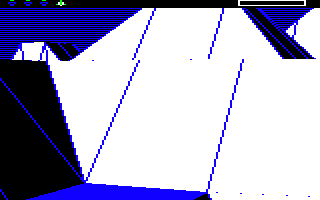
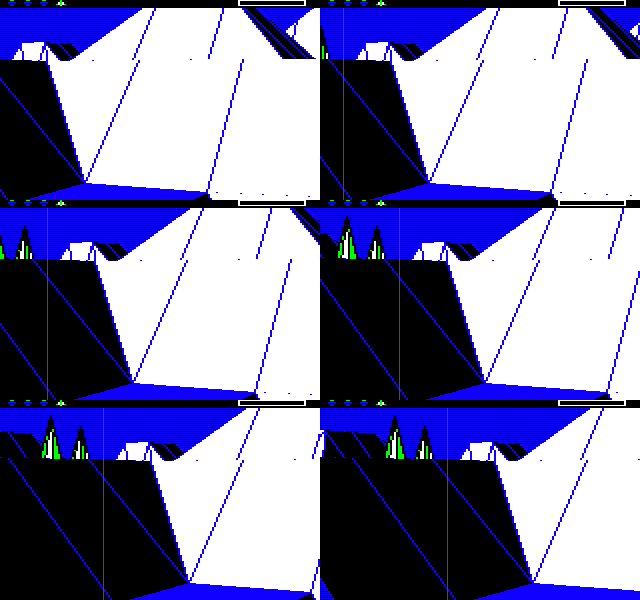
After pressing the key there's a short pause, during which nothing appears to happen (but which has actually triggered a hive of activity within the game code), and then the landscape view scrolls sideways. If we mark the starting point with a vertical red line (which doesn't appear in-game), then you can see the process pretty clearly:
The result is this landscape view, which just happens to be the starting point on landscape 0000, if you're wondering why you recognise it:
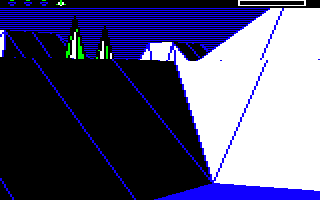
You can see that to get from one view to the next, we have to scroll a wide column of new landscape content into the screen from the left. This is what the new content looks like:
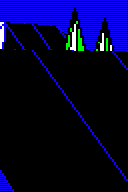
The new content is 64 pixels wide and 192 pixels high, while the landscape view is 160 pixels wide and 192 pixels high, so the new content is 40% of a screen width (and each full screen is 2.5 pans wide).
Let's have a look at how this new content gets drawn into the screen buffer. The structure of the screen buffer is described in the deep dive on screen buffers, where you can read about what the following screenshots represent, but this is what the screen buffer looks like in memory once the new content is drawn:
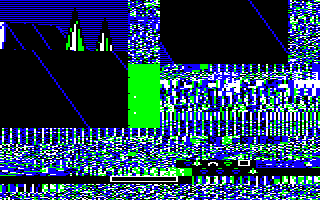
The column buffer is split in two, and looks like this when those two parts are combined:
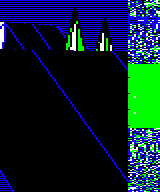
In the case of a screen pan, we don't need to use the width of the entire column buffer, which is why the right portion of the buffer is full of random content that we can ignore (the column buffer is 80 pixels wide, but we only need 64 pixels for a pan; we only use the full width of the column buffer when updating individual 3D objects on-screen).
Here's the new content being drawn into the screen buffer:
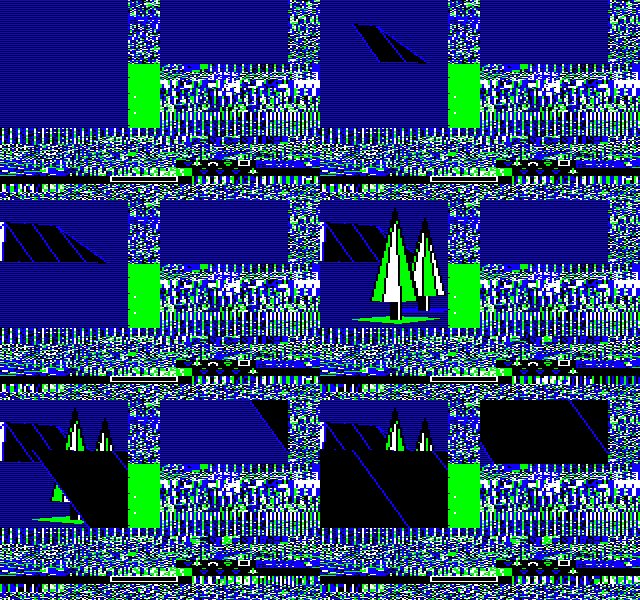
This drawing process starts as soon as the player presses a pan key, and it continues until either the drawing process has finished (in which case we move on to the screen-scrolling process), or the player releases the pan key (in which case the whole process is aborted and we go back to the gameplay loop).
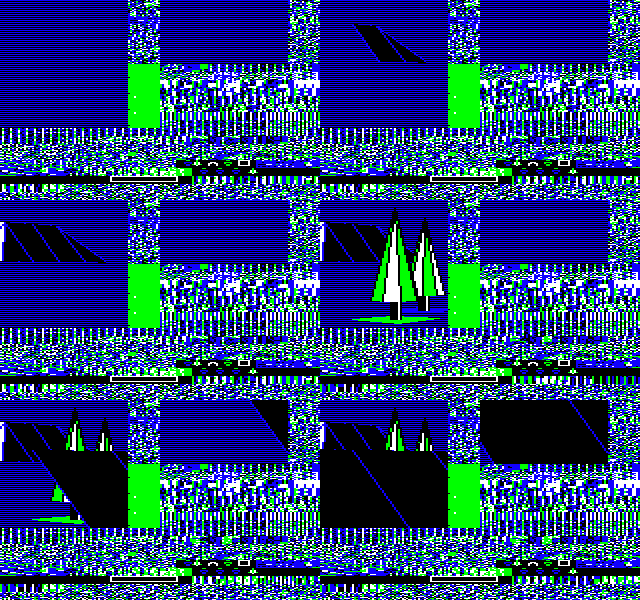
If we slow down the drawing process, then you can see just how involved it is. It starts by drawing the far tile row from near to far, then it moves on to the two tree objects, again drawing the furthest one first, and finally it moves on to the tile row in front, drawing over a lot of the work that's gone into the previous steps:
Once the new bit of landscape has been drawn into the screen buffer, the scrolling process can start. As we saw above, the new content is scrolled onto the screen from the left, while the rest of the screen content is scrolled to the right.
This scrolling process is performed by the interrupt handler using hardware scrolling, and because the interrupt routine is called 50 times a second, the scrolling is pretty smooth. If we slow down this process, you can see that the new content is introduced onto the screen in a number of small steps:
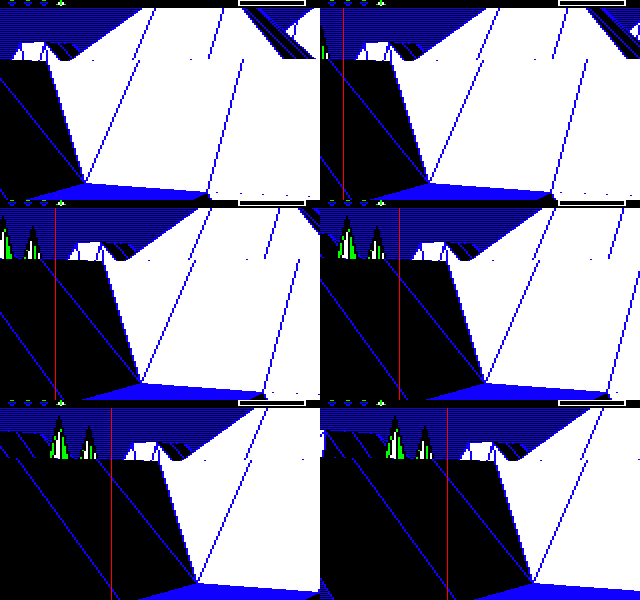
Each step scrolls the screen to the right by one character block (i.e. one byte in screen memory), which equates to four pixels in screen mode 5. So the new content, with its width of 64 pixels, is scrolled onto the screen in 64 / 4 = 16 steps.
For a vertical pan, the same approach applies, except we configure the screen buffer as a row buffer and scroll the new content in from above or below, depending on the direction of the pan. For example, if we scroll down from the same screen as before, rather than left, we get this pan:
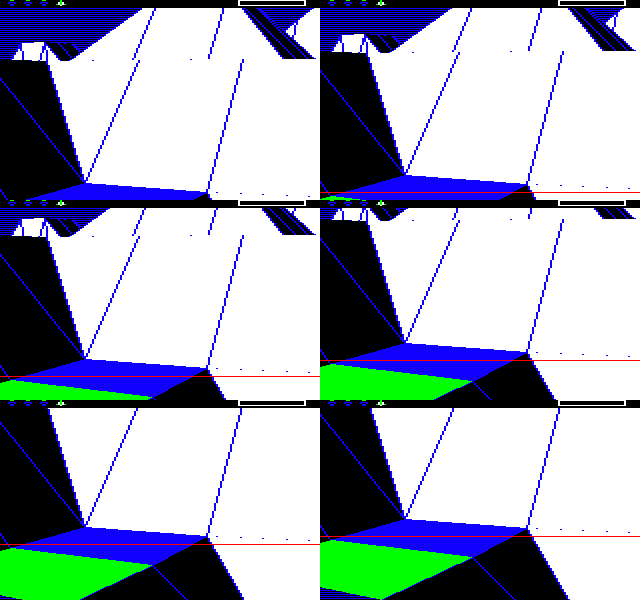
This scrolls the following new bit of landscape onto the screen from below, with the new part being 160 pixels wide and 64 pixels high:

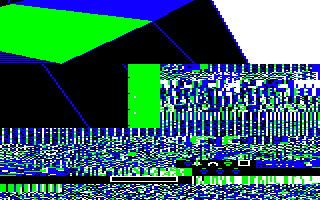
This gets drawn into the screen buffer like this, where it takes up the row buffer along the top of the screenshot (the bottom-left part of the screen buffer still contains remnants of the column buffer from the previous pan, but we can ignore this):
Once it's drawn, the new content gets scrolled onto the screen in eight steps of eight pixels each (as the screen is scrolled upwards by one character block at a time, and each character block is eight pixels tall). It looks like this when it's slowed down:
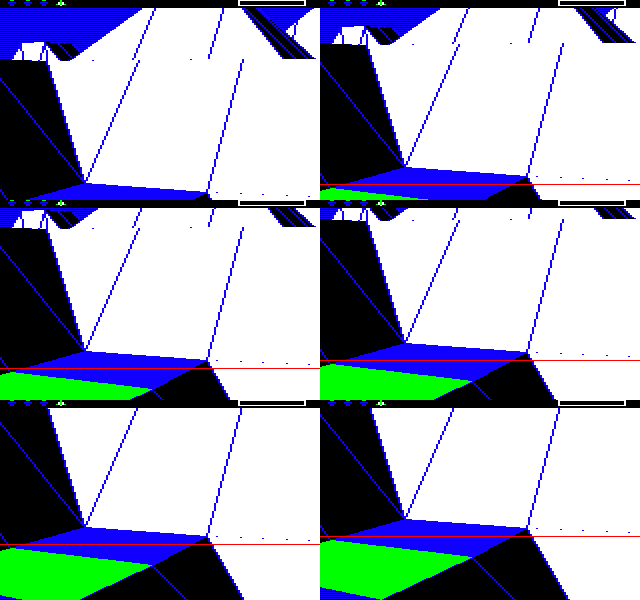
The scrolling isn't quite as smooth as for the sideways pan, as each step is eight pixels rather than four, but mode 5 doesn't have square pixels and vertical pans scroll in half the number of steps (with eight steps for vertical pans and 16 steps for horizontal pans), so it isn't terribly obvious.
Now that we know what a screen pan looks like, let's look at the various stages in more detail.
Detecting a screen pan
----------------------
During normal gameplay, when the landscape is visible and the player can pan around and interact with tiles, the game spends most of its time looping around at the start of the ProcessGameplay routine, waiting for a key to be pressed (see the deep dive on program flow of the gameplay loop for details).
The keyboard checks are performed in the background in the interrupt handler, and if an action key is pressed (which includes the pan keys) then bit 7 of focusOnKeyAction gets set (see the deep dives on the interrupt handler and the key logger for details).
Another way in which a pan key may be "pressed" is when the player has the crosshair sights on-screen, and moves them off the side of the screen. If this happens, then the code simulates a pan key being pressed by setting the panKeyBeingPressed variable, so that a pan will be triggered in the same way.
The gameplay loop continues to loop around, doing things like applying enemy tactics and processing non-action key presses such as the pause button, but as soon as an action key is pressed (either by the player or by the sights routine) and bit 7 of focusOnKeyAction is set, the loop terminates so the game can focus its attention on the key press. The very next check is whether this is a pan key being pressed, and if it is, ProcessGameplay returns control back to the main game loop to process the pan, making sure to clear the C flag as it does so. (If this isn't a pan key press, then it gets processed by the rest of the ProcessGameplay routine.)
On returning to the main game loop, the code in part 2 of MainGameLoop checks to see if the C flag is clear, and if it is then we know that control has returned because of a pan key press. There are other reasons to return to the main game loop - if the Sentinel has won, if the player has pressed the quit key, or if the player has performed a U-turn or changed tile - but these all return with the C flag set, so we can filter them out.
If the C flag is clear, then we jump to label game8 in MainGameLoop to process the pan. Throughout the rest of the process, we can find out which type of pan is in progress by looking at the lastPanKeyPressed variable, which contains the following values:
- 0 = pan right
- 1 = pan left
- 2 = pan up
- 3 = pan down
Given this information, let's look at how the pan is processed.
Processing the screen pan
-------------------------
On returning to the main game loop after identifying that a pan has been initiated, we initialise a few variables and check whether the crosshair sights are visible. If they are visible, then we know that the pan has actually been triggered by the player moving the sights off-screen rather than them pressing a pan key, so we flag this in bit 7 of keepCheckingPanKey (a clear bit indicates a crosshair-related pan, a set bit indicates a normal player-initiated pan). This controls whether or not we check for the player releasing the pan key in the call to DrawLandscapeView below; if the crosshairs are present, then we don't check for the pan key release, so we always complete the pan.
After these initial checks, we call the PanLandscapeView routine to draw the new part of the landscape that's needed for the pan. This is what the PanLandscapeView routine does:
- Rotate the camera to the correct angle for drawing the new part of the landscape (by pitching or yawing the player's gaze).
- Call FillScreen to fill the screen buffer with alternating colour 0 and colour 1 (blue/black) pixel rows, for the sky.
- Call DrawLandscapeView to draw the new part of the landscape into the screen buffer, returning as follows:
- If, during the drawing process, the player releases the pan key before the drawing has finished, the drawing routine will abort the drawing process and return early, with the C flag set. Note that this test is not applied if we are panning the screen because the crosshairs have moved off the side of the screen, as in this case we need to complete the pan regardless (so we only apply this test if bit 7 of keepCheckingPanKey is set).
- If the drawing process completes, the routine will return with the C flag clear.
- Check the C flag, and if it is set then the pan has been aborted by the player, so revert any camera rotation and return back to the main game loop.
- If we get here then the landscape has been drawn successfully, so update the player's rotation to the correct angle for when the pan finishes (so the player object rotates by the correct amount).
- Call the StartScrollingView routine with 8 (for a vertical pan) or 16 (for a horizontal pan) to set the value of numberOfScrolls to this value, and set screenBufferAddr(1 0) to the address where the interrupt handler should start fetching new content to scroll onto the screen.
So the new part of the landscape is now in the screen buffer and the scrolling process has been configured, so now we draw the results of the pan on-screen.
Scrolling the landscape view
----------------------------
The final step in this burst of activity is to scroll the screen itself. This is the first time the player sees the results of all this work; if they release the pan key before this point, then everything gets aborted and they are none the wiser.
Assuming that the pan key is still being held down (or irrespective if this is a crosshair-related pan), the scrolling process is initiated as soon as we return back to the main game loop following the call to PanLandscapeView that we looked at in the last section. As noted above, this routine sets the numberOfScrolls variable to the number of scroll steps to perform, as follows:
- 8 for a vertical pan
- 16 for a horizontal pan
- 0 if the pan has been aborted
Now that we're back in the main game loop, the first thing we do is call UpdateIconsScanner to update the icons in the top-left corner of the screen to show the player's current energy level and redraw the scanner box. We do this to ensure that the icon screen buffer is updated with the correct content for the top row, so it can be refreshed after every scrolling step in the interrupt routine (as otherwise the top row would scroll along with the rest of the screen contents, and we don't want that).
Next, the scrolling process is triggered by the simple act of setting the scrollCounter variable to the number of scroll steps to perform, i.e. to the number of steps in numberOfScrolls. The scrollCounter variable is checked by the interrupt handler on each interrupt, and if it is non-zero then the screen is scrolled by one step and the value of scrollCounter is decremented, so simply setting this variable to a non-zero value will trigger the screen-scrolling process in the interrupt handler.
The main game loop therefore just sets the value of scrollCounter, and then enters a loop that waits for scrollCounter to count down to zero. If the pan was aborted and numberOfScrolls was set to zero by PanLandscapeView, then none of this has any effect and no scrolling occurs, but if numberOfScrolls is set to 8 or 16, then that's the number of scroll steps that will be applied. The main game loop therefore waits until the pan has been fully drawn by the interrupt handler, and then passes control back to the main gameplay loop so the game can continue.
The deep dive on the interrupt handler describes the handler in more detail, but here's the relevant part for the pan. If scrollCounter is non-zero, then we do the following:
- Call ScrollPlayerView to scroll the screen (using a hardware scroll) and copy data from the screen buffer into screen memory to implement the player's scrolling landscape view. This also decrements scrollCounter, so ScrollPlayerView will end up being called the correct number of times for the landscape pan.
- Call ShowIconBuffer to display the contents of the icon screen buffer by copying it into screen memory, as the scrolling process will have scrolled this part of the screen, so we need to redraw it to prevent the energy icons and scanner from moving.
The important part is the ScrollPlayerView routine, which scrolls the screen and copies the new landscape content into screen memory, as follows:
- Update viewScreenAddr(1 0) to the new address of the player's scrolling landscape. The amount of change that we need to apply to the view screen address for each of the four directions is given in the tables scrollScreenHi and scrollScreenLo as 16-bit signed values, so we just need to look up the correct value and apply it to viewScreenAddr(1 0).
- Reprogram the 6845 CRTC chip to scroll the screen in hardware (so-called "hardware scrolling") by setting 6845 registers R12 and R13 to the new address for the start of screen memory. This is the step that actually scrolls the screen, though it doesn't incorporate the new content at this point, it just wraps the screen content around.
- Decrement the counter in scrollCounter as we have just done one scroll step.
- Set toAddr(1 0) to the address of the area in screen memory that we now need to update with the new content.
- Fall through into the ShowScreenBuffer routine to calculate the correct address in screen memory for the new content, and then call either ShowBufferRow or ShowBufferColumn to copy one character row or one character column from the screen buffer into the area we need to update, so that the scroll reveals a strip of the new content.
Once the landscape has been fully scrolled by multiple calls to the interrupt handler, the main game loop stops looping (because scrollCounter is now zero), and it passes control back to the main gameplay loop so the game can continue.
And that is how the duck's frantic paddling produces such serene gameplay. It's very clever stuff...