How the game manages different colour schemes and palettes
One of the more impressive aspects of The Sentinel is how it manages to create such an immersive and graphically advanced landscape with just four colours - and that's including black. Not only that, but there's no dithering of colours or screen interrupt hacks, there are just four basic colours plucked from the BBC Micro's relatively limited palette... and yet the tiles and 3D objects manage not only to stand out, but they still manage to look great.
There is variety, though; in fact, there are eight different palettes in the game, all carefully chosen to work with both the landscape view and the energy icons and scanner in the top row. The in-game palette is chosen according to the number of enemies on the landscape, which you can read all about in the deep dive on adding enemies and trees to the landscape. The game over screen retains the in-game palette when displaying the victorious object, but the title screens have a fixed palette: the same one as the landscape when there are eight enemies (blue, black, red and yellow).
Here are all the variations:
| Landscape details | Preview |
|---|---|
| Enemy count = 1 Colour 0 = blue Colour 1 = black Colour 2 = white Colour 3 = green | 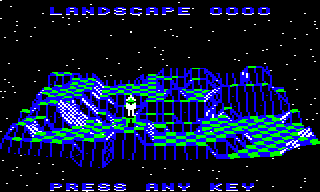 |
| Enemy count = 2 Colour 0 = blue Colour 1 = black Colour 2 = yellow Colour 3 = red | 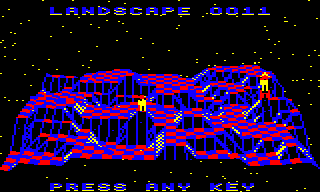 |
| Enemy count = 3 Colour 0 = blue Colour 1 = black Colour 2 = cyan Colour 3 = yellow | 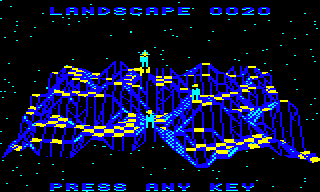 |
| Enemy count = 4 Colour 0 = blue Colour 1 = black Colour 2 = red Colour 3 = cyan | 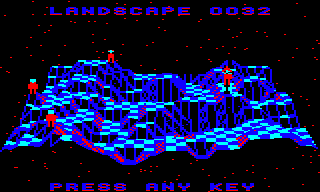 |
| Enemy count = 5 Colour 0 = blue Colour 1 = black Colour 2 = white Colour 3 = red | 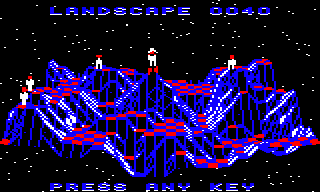 |
| Enemy count = 6 Colour 0 = blue Colour 1 = black Colour 2 = yellow Colour 3 = cyan | 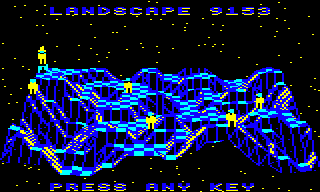 |
| Enemy count = 7 Colour 0 = blue Colour 1 = black Colour 2 = cyan Colour 3 = red | 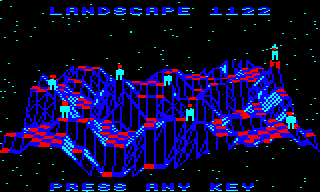 |
| Enemy count = 8 Colour 0 = blue Colour 1 = black Colour 2 = red Colour 3 = yellow Also used for the title screens | 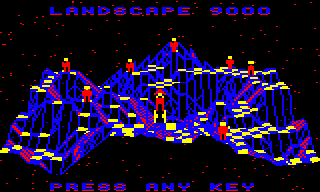 |
Notice that colours 0 and 1 are always blue and black; this ensures that the in-game sky is always the correct colour, with its blue and black stripes. Blue is always used for one of the landscape tile colours, and colours 2 and 3 are effectively the accent colours for each palette, with colour 2 providing the bulk of the enemy livery and colour 3 giving colour to the landscape tiles. The range of accent colours is as follows:
- Colour 2 can be white, yellow, cyan or red.
- Colour 3 can be green, red, yellow or cyan.
The various colours are then used as follows:
- Flat tiles are either blue (colour 0) or colour 3, in a chess board pattern.
- Slopes are either drawn in black (colour 1) or colour 2.
- All tile shapes have an edge colour of blue (colour 0) apart from the colour 3 flat tile, which has an edge colour of colour 3 so the edge colour matches the fill colour.
- The tree foliage is striped in colours 2 and 3.
- Stars on the title screens are always drawn in colour 2.
On top of this, each tile shape has its own colour configuration, which is defined in the tileShapeColour table. As noted above, this table sets the edge colour to blue for all shapes apart from the non-blue flat tile, and this is what gives the landscape slopes their blue outlines, which you can see here:
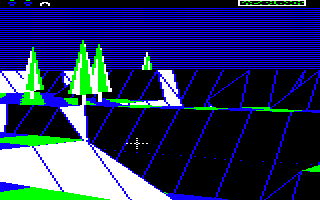
The tileShapeColour table also defines fill colours for the faces in all of the shapes, allowing the two faces in two-face shapes to be different colours when required, according to the direction in which they point. See the deep dive on drawing the landscape view for more details.
Setting the palette
-------------------
The palette can be set by calling the SetColourPalette routine with the required palette specified in A. The value of A defines how the four physical colours in the mode 5 palette are set:
- If bit 7 is clear then bits 0-6 contain the physical colour to set for all four logical colours (so the screen is effectively blanked to this colour).
- If bit 7 is set then bits 0-6 contain the offset within the colourPalettes table of the last of the four physical colours to set for logical colours 3, 2, 1 and 0 (so we work backwards through the table from the offset in bits 0-6).
The first option allows us to set the all-blue palette that's applied when the game needs to draw the whole screen; this happens when the title screens are drawn, or the player starts a new landscape, performs a U-turn or performs a hyperspace. By setting all four colours to blue, the game can draw directly into screen memory without the player being able to see anything, and once the drawing is finished, a simple palette change will reveal the new view in an instant.
In practice, the routine is only ever called with these three values of A:
| A | Effect |
|---|---|
| 4 | Set all four logical colours to physical colour 4 (blue). |
| &83 | Set the palette to the first set of colours from the colourPalettes table, which the SpawnEnemies routine sets to the correct palette for the current landscape. |
| &87 | Set the palette to the second set of colours from the colourPalettes table (blue, black, red, yellow), for the title screens. |
And that's how The Sentinel manages to take just four colours and still produce such a vibrant-looking game.