How the title screens use the landscape routines to draw blocky 3D text
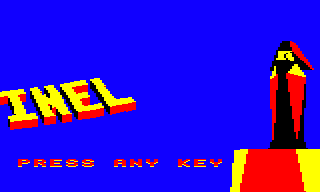
The blocky 3D text on the main title screen makes it pretty clear which game this is, and quite right too:
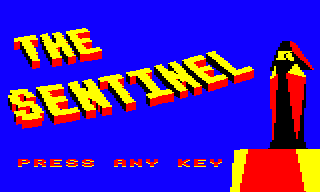
What isn't so apparent is that with the exception of the system text along the bottom, this entire screen is drawn by the same routines that draw the in-game 3D objects. That's fairly obvious for the Sentinel and tower on the right, but the title text proclaiming "THE SENTINEL" is actually built out of three different types of 3D block object, and the cinematic sweep of blocky text is essentially a landscape view of these large blocks that have been carefully arranged on the game's tile landscape.
To make this easier to see, you can think of the text blocks as being laid out on an invisible landscape like a large housing estate, and we're high up in the air looking down from a helicopter at a slightly oblique angle. The letters are formed by the layout of the apartment blocks, with the yellow roofs and red-and-black walls of the text-block apartments forming the pattern of the text.
The blocky nature of the text is more obvious if we reveal the drawing process:
Here you can see the game code drawing the text in rows, from the rear of the text to the front, in the same way that the 3D tile landscape is drawn in-game (see the deep dive on drawing the landscape view for lots of examples of the landscape-drawing process). This is no coincidence; it's a clever way of reusing the game's graphics engine to draw the title screens. The same effect is used to draw the text on the secret code screen:
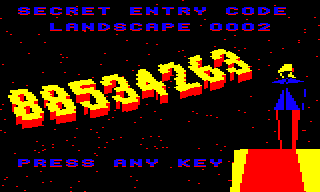
Indeed, the elegant curvature of the 3D text is down to the use of the game engine. If you compare the curve of the text to the panorama shot of the whole landscape below, you can see the same kind of curve just to the right of the tree in the lower foreground:
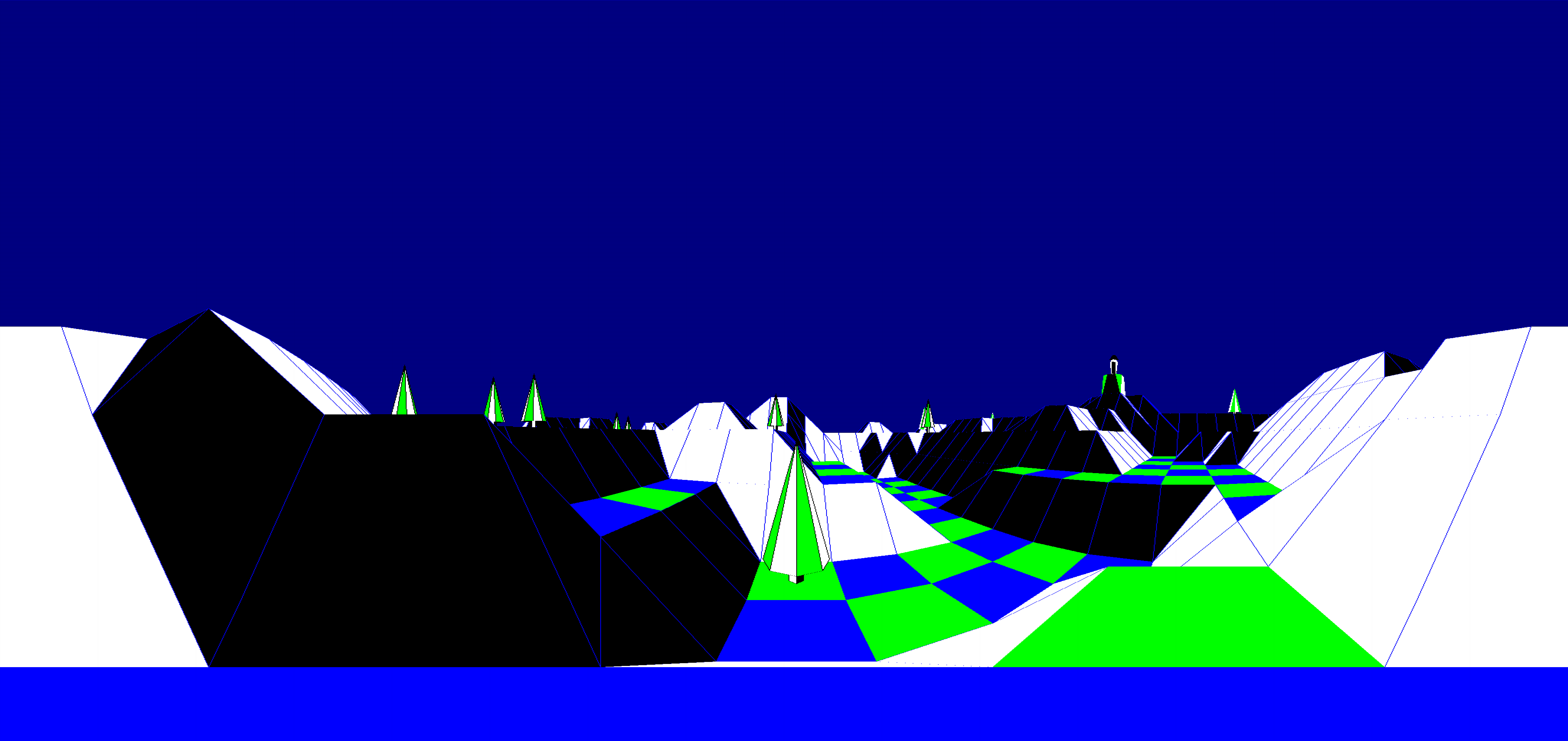
You can read more about this curvature in space in the deep dive on the projection system, and there's more information about the title screens in the deep dive on drawing the title screens. For the rest of this article, we'll concentrate on exactly how the game uses the landscape-drawing routines to print 3D text.
Text as 3D block objects
------------------------
The 3D text is composed of three differently shaped 3D block objects. These objects are described in the deep dive on 3D object definitions, but to recap, each of the three shapes is made up of a pair of blocks, left and right, which are configured as follows:
- Object 7 has no block on the left and a block on the right.
- Object 8 has a block on the left and no block on the right.
- Object 9 has both the left and right blocks.
On the main title screen, each block has a yellow top, with black and red sides. To visualise this, here is the main title text with each block drawn with a black outline:
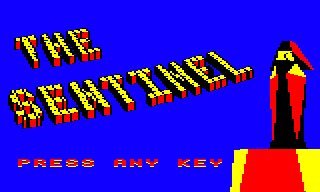
Most of the objects in this example are type 9, with both the left and right blocks present. If we only draw the type 9 blocks, then we get this:
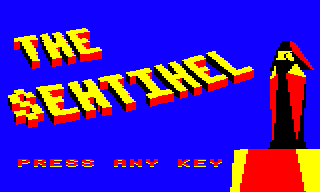
Most of the text is there even if we only use the double-block object, but the "S" and "N" letters are particularly affected, with the latter looking more like an "H". The middle bar of the "E" is also slightly shortened. This is more obvious when you compare it to how it should look:
That's because the objects of type 7 and 8 fill in the diagonal parts of the letters. Here are the objects of type 7, which just contain the right block of the pair:
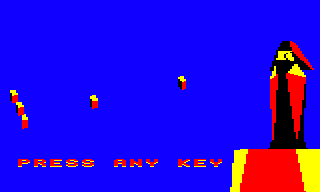
And here are the objects of type 8, which just contain the left block:
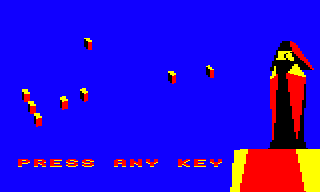
The reason for this two-block approach becomes more apparent when you look at the algorithm behind the 3D text. To get the shapes of the letters, the code pulls the system font from the BBC Micro's operating system and uses that to calculate how to fit the three types of 3D block objects onto the landscape to make the correct shape.
Here's what the text looks like in standard screen mode 5 on the BBC Micro:

Mode 5 does not have square pixels, so the text looks pretty stretched, but the text engine in The Sentinel uses square blocks, so let's see what the BBC's system font looks like if we use square pixels instead:
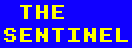
And here's the main title text again:
It's clearly the same font, and if we pick apart the individual pixels, we can also see how the three different block configurations work.
For example, if you look at the bar across the middle of the "N" character, you can see there's a horizontal bar of two pixels across the middle, and there's a solitary left pixel above it and a solitary right pixel below. So when we come to draw the bar in 3D text, we use an object of type 9 for the two-pixel bar, and put an object of type 8 (left) above the bar and an object of type 7 (right) below it. You can see these different objects in the screenshots of the exploded 3D text above: they're just up from the "K" character in "KEY".
It's worth noting that a similar effect could in theory be achieved with just one type of block object, and having one block per tile. That would make the text much wider, so it wouldn't look the same, but more importantly it would make the text too wide to fit onto the 31x31-tile landscape; it's still an incredibly tight fit with two blocks per tile (as we'll discuss below). And on top of that, not only is it slightly quicker to draw using fewer objects, but the three objects also share polygon definitions, so the small amount of extra memory required to support a three-block system is worth the speed increase.
Let's see how the algorithm works.
The 3D text algorithm
---------------------
Both the main title screen and the secret code screen are drawn by calling the DrawTitleScreen routine. The main program flow of this routine is described in the deep dive on drawing the title screens, but let's concentrate on the parts that are relevant to drawing the 3D text.
Here's the process in the DrawTitleScreen routine when drawing the text on the title screens (we'll look at the main steps in more detail below):
- Configure object #63 to face towards the front of the landscape (i.e. towards the tile row with a z-coordinate of 0) and give it a y-coordinate of 2.875 tile widths, so it sits above the ground. We use object #63 for drawing each of the block objects in the 3D text, so this ensures the blocks are squarely aligned with the camera and appear to hover in space.
- Set bit 7 of drawingTitleScreen so the DrawTileAndObjects routine draws object #63 instead of a landscape tile.
- Call ProcessTileData with A = 0 to zero the tile data at tileData for the whole landscape.
- Work through the title text at titleText, and for each character, call SpawnCharacter3D to spawn 3D text block objects on the landscape in the shape of the title text. We do this by adding the required block types to the tile data, which will then be extracted in the DrawTileAndObjects routine. See the next section for more details of this step.
- Call DrawTitleView to draw the title screen. This calls DrawLandscapeView to draw the landscape view, which in turn calls DrawTileAndObjects for each tile in the landscape. And because bit 7 of drawingTitleScreen is set, the routine configures object #63 to be a 3D text block of the correct type, as per the tile data we set up in the previous step, and then draws the block to create the 3D title text on-screen. See below for more details on the drawing process.
- Once everything is drawn, clear bit 7 of drawingTitleScreen so that tile and object drawing goes back to normal.
Let's look at the main parts of this algorithm in more detail, starting with the spawning of the 3D text block objects that make up the text.
Composing text from blocks
--------------------------
The main title text is stored in titleText and consists of a couple of move instructions and the text itself, as follows:
- Move to tile coordinate (4, 21), towards the back of the landscape.
- Draw "THE" in 3D text blocks.
- Move to tile coordinate (0, 7), which is further forward and a bit to the left.
- Draw "SENTINEL" in 3D text blocks.
Each byte in the titleText variable is passed by the DrawTitleScreen routine to the SpawnCharacter3D routine, one at a time.
The latter routine checks whether the byte being passed is a move command (which will have bit 7 set) or a text character. If it is a move command then it stores the byte in either the xTileCharacter or zTileCharacter variable, depending on whether bit 6 is set, and then it exits. This enables us to set the text position by passing two bytes; those bytes are actually tile coordinates on the landscape and denote where we will spawn the 3D text block objects in the next step.
If bit 7 is clear then the byte being passed contains an ASCII code for the character to draw, so we call the operating system's OSWORD routine to extract the character definition from the MOS ROM so we can step through each pixel row and construct it out of 3D text blocks on the landscape.
The character definition is given as eight rows of eight pixels, with one bit per pixel, so we extract two bits at a time to give a number in the range 0 (%00) to 3 (%11), and use this as an index into the table at objBlockNumber. This converts the two-bit pattern into an object number of 0 (for no blocks), 7 (for bit pattern %01, i.e. right block only), 8 (for bit pattern %10, i.e. left block only) or 9 (for bit pattern %11, i.e. both blocks). We then store the object number in the tile data table for the relevant tile coordinate at tileData, and move on to the next bit pair in the character definition.
Note that we actually work through the character definition from bottom to top, so as we put each object on the landscape, we move right along the tile landscape x-axis by one place for each new bit pair in the character definition row, and we move backwards to each new tile along the z-axis by one place for each new row in the definition. Also, the object numbers that we store in the tile data table have 32 added to them so the actual values are in the range 32 to 35, though this doesn't make any difference as bits 4 to 7 are cleared when we retrieve this value in the DrawTileAndObjects routine, so adding 32 has no effect (perhaps the extra 32 is left over from a feature that was dropped?).
So now we have a tileData table that's populated with object numbers in the correct places, and we can move on to the next step to set up the camera position and draw the landscape.
Cameras and title offsets
-------------------------
To draw the 3D text, we call the DrawTitleView routine. This starts off by setting six variables by fetching values from six lookup tables that contain different settings for the landscape preview and the other title screens. We use these variables to define object #16, which we use as the viewing object (i.e. the camera) when drawing the title screen.
Here are the values for drawing the 3D text:
| Lookup table | Value | Variable | Description |
|---|---|---|---|
| xTextViewer | 0 | xObject+16 | x-coordinate of the viewer |
| yTextViewer | 75 | yObjectHi+16 | y-coordinate of the viewer |
| zTextViewer | 191 | zObject+16 | z-coordinate of the viewer |
| textViewerPitch | -39 | objectPitchAngle+16 | Pitch angle of the viewer |
| textViewerYaw | 18 | objectYawAngle+16 | Yaw angle of the viewer |
| titleOffset | -17 | xTitleOffset | Title offset |
The coordinates are in terms of whole tile sizes, so the camera is positioned at the left edge of the landscape (xTextViewer = 0), 75 tile heights above the landscape floor (yTextViewer = 75), and 191 tiles in front of the landscape (zTextViewer = 191). The camera is pointing down at an angle of 54.8 degrees (textViewerPitch = -39) and 25 degrees to the right (textViewerYaw = 18), so this moves the text up and to the left.
Because the z-coordinate is so big, the camera is a long way from the landscape so the entire landscape will fit onto the screen. The landscape is 31x31 tiles in size, just to put it in context, and "SENTINEL" is eight characters long. Each pixel row in each character splits up into four two-bit pairs, so the width of each character spans four objects across four tiles. But for eight characters that comes to 8 * 4 = 32 objects, and the landscape is only 31 tiles wide, so what happens to the last tile?
It turns out that it gets dropped, but this isn't very obvious. Each character definition contains a one-pixel vertical gap to stop consecutive letters from touching; this column is on the left in the MOS character set, but we shift it to the right of each character when drawing the 3D text. So by losing a two-pixel block from the right edge of the last letter, we only end up losing a single character pixel from the bottom-right corner of the "L"; if the last character were a wide character like an "M", then this clip would be a lot more obvious, as the letter's right stem would be half the width of the left stem, but with the "L" in the title text it isn't obvious at all.
There's another important setting here, and that's the title offset, which is a unique concept that only applies to the 3D text system. When drawing 3D text, a value of -17 is stored in the xTitleOffset variable. Normally this variable is zero and has no effect on the drawing process, but for 3D text it is non-zero and lets us control the perspective of the text.
This title offset is applied in two places:
- The GetHorizontalDelta routine calculates the difference ("delta") in the x-axis and z-axis between two objects. The value of xTitleOffset is subtracted from the x-coordinate delta.
- The GetTileViewAngles routine calculates the pitch and yaw angles for a tile corner, relative to a viewer object. The value of xTitleOffset is subtracted from the x-coordinate delta between the viewer and the tile.
When drawing 3D text, xTitleOffset is set to -17, so this has the effect of moving the viewer 17 tiles to the left during the drawing process. So applying the title offset makes the text blocks appear to move 17 tiles to the right.
So why would we want to do this? Well, it's all a matter of perspective - literally - because the sweeping effect that we want for the title text is created by the camera yawing to the right by 25 degrees. This makes the letters look quite different as they are being viewed from an oblique angle to their left, rather than straight on, but if we apply this yaw angle without applying a tile offset, the text moves left and falls off-screen, like this:
Setting the title offset to -17 moves the viewer to the left and therefore moves the text back on-screen.
You might be wondering why we don't just move the viewer by changing the x-coordinate in xTextViewer. This is because xTextViewer is already 0, which makes the camera look along the length of the text from left to right and captures the curvature in a cinematic manner. And because this is a tile coordinate, it can't be negative, so we can't move the viewer any further left. So the solution is to compensate for the camera yaw by making the drawing routines apply an x-axis translation in a way that won't affect the perspective, but instead moves everything across by the title offset. In this way the text moves back on-screen while enabling us to retain the sweeping perspective that we want.
Drawing the text
----------------
With the camera position and title offset correctly configured, we can finally call the DrawLandscapeView routine to draw the landscape view. This is the same routine that is used to draw the landscape (see the deep dive on drawing the landscape view for details).
There is one difference when drawing text, however, as we don't want to draw the actual landscape, otherwise our text would be surrounded by a chess board effect of flat tiles; but we do want to draw all the objects on the landscape. So when the drawing process calls the DrawTileAndObjects routine to draw each tile and its contents, then because bit 7 of drawingTitleScreen is set, the routine jumps to a part of the code that is only used for drawing 3D text.
This specialised routine fetches the relevant byte of tile data for the tile, and clears bits 4 to 7 to give either zero (for no block) or 7, 8 or 9 (for a block of that type). If the data is zero then we draw nothing and return from the subroutine, but if it is non-zero then we configure object #63 to be a 3D text block of the required type, and we then draw the object by calling the DrawObject routine.
This draws all the 3D block objects on the landscape, but without drawing any landscape tiles or tile shapes, effectively giving us a collection of 3D block objects in the shape of the title text, hovering above an invisible landscape instead of the Sentinel's tiled world.
And that's how the 3D text is drawn using the same 3D engine as the rest of the game.